How to Build a Racing Simulator: A Step-by-Step Guide for Beginners and Serious Sim Racers
Building a racing simulator sounds complicated until you break it into a few practical decisions: what you race on, how you steer and brake, where you sit, and how you see the track. You do not need a dedicated room, three monitors, or an expensive direct-drive wheel to get started. You need components that work together, a stable driving position, and enough time to configure everything properly.
In this guide, I’ll walk through how I would plan a racing simulator from scratch, including three realistic budgets, the parts worth spending money on, assembly order, software setup, and the mistakes that can turn a promising build into a frustrating one. This is a researched build guide, not a claim that I personally tested every product mentioned.
Quick Answer: What Do You Need to Build a Racing Simulator?
To build a racing simulator, start with a compatible PC or console, a force-feedback racing wheel and pedals, a stable desk, wheel stand, or cockpit, a comfortable seat, and a screen. Mount the wheel and pedals securely, connect the hardware, install its drivers or configuration software, set up your racing game, and calibrate steering and braking. Add a shifter, handbrake, VR headset, or triple monitors only when your driving needs justify them.
Table of Contents
- The seven parts of a racing simulator
- How much does a racing simulator cost?
- Step 1: Choose PC or console
- Step 2: Choose a racing wheel and wheelbase
- Step 3: Choose and secure your pedals
- Step 4: Build your cockpit or mounting solution
- Step 5: Set up your monitor or VR
- Step 6: Assemble and connect the rig
- Step 7: Configure software and force feedback
- Step 8: Adjust your driving position
- Three recommended racing simulator builds
- What to upgrade first
- Common mistakes to avoid
- Frequently asked questions
The Seven Essential Parts of a Racing Simulator
| Component | What it does | Essential? | Practical advice |
|---|---|---|---|
| PC or console | Runs the racing game | Yes | Check platform compatibility before shopping |
| Racing wheel and wheelbase | Steering and force feedback | Yes | Choose a bundle if you want fewer compatibility questions |
| Pedals | Throttle and braking | Yes | Secure them before worrying about advanced upgrades |
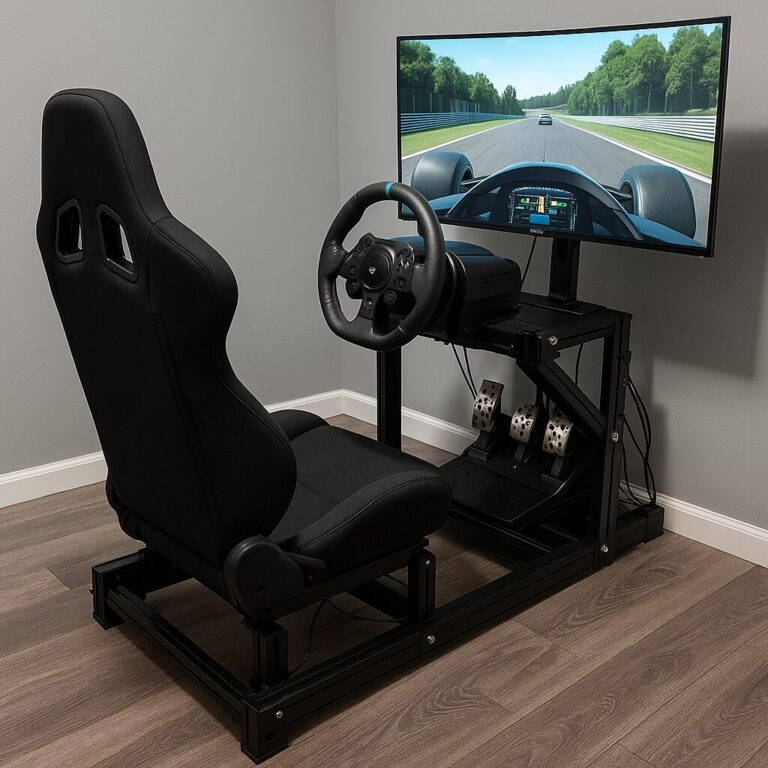
| Desk, stand, or cockpit | Holds hardware in place | Yes | Rigidity matters more than appearance |
| Seat | Maintains a repeatable driving position | Yes | An existing chair works if it does not roll away |
| Monitor, TV, or VR headset | Displays the track | Yes | Start with a screen you already own |
| Shifter, handbrake, button box | Adds controls and immersion | No | Buy after the basics feel right |
The most important principle is that your simulator is a system. A powerful wheel mounted to a flimsy desk can feel worse than a modest wheel on a stable stand. Likewise, expensive pedals are hard to use consistently if the pedal tray slides away every time you brake.
How Much Does It Cost to Build a Racing Simulator?
These are illustrative planning ranges in US dollars, not live quotes or promises of availability. They assume you may already own a PC, console, or display. Actual costs vary with region, shipping, taxes, used equipment, and bundle promotions.
| Build level | Approximate equipment budget | What to expect |
|---|---|---|
| Entry-level | $300–$700 | Force-feedback wheel bundle, desk or basic stand, existing screen |
| Midrange | $800–$1,800 | Entry direct-drive wheel, better pedals, sturdy cockpit or stand |
| Enthusiast | $2,000–$5,000+ | Higher-torque direct drive, rigid cockpit, load-cell pedals, dedicated display |
If you also need a gaming PC, high-refresh monitor, or console, budget for those separately. My approach is to price the complete usable build before comparing individual wheelbases. A wheelbase-only price is not the cost of a working simulator.
Step 1: Choose Your Platform Before Buying Hardware
PC: Best for flexibility and long-term expansion
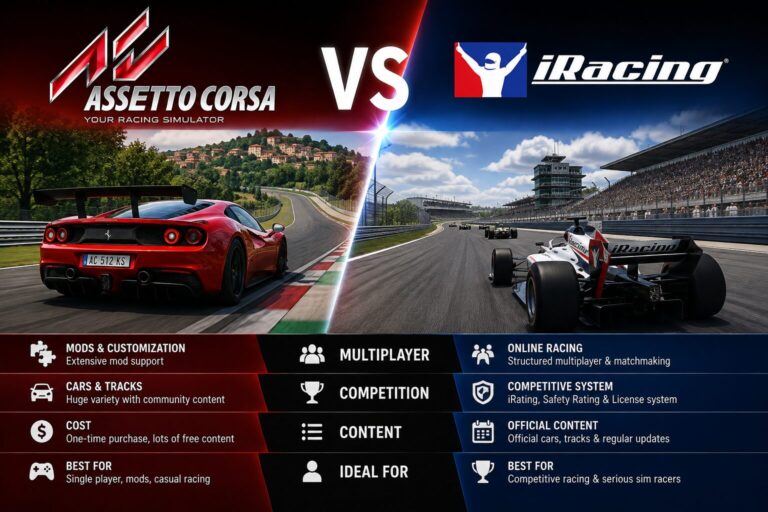
A Windows PC generally offers the broadest choice of wheelbases, independent USB pedals, shifters, telemetry tools, and simulator software. Popular options include Assetto Corsa, Assetto Corsa Competizione, iRacing, Automobilista 2, and rFactor 2. However, check each game’s current requirements and supported devices before buying.
PC is especially useful if you eventually want to mix brands—for example, a MOZA wheelbase with a separately connected USB pedal set. That flexibility is not universal on consoles.
PlayStation and Xbox: Convenient, but compatibility is stricter
For consoles, buy a wheel system explicitly certified or supported for your exact console generation. A wheel working on Windows does not automatically work on PlayStation or Xbox. Even within one brand, compatibility can depend on the wheelbase, steering-wheel rim, console model, and game.
Important: The standard MOZA R5 bundle is marketed as a PC bundle, not a universal console wheel. Do not assume an Xbox-ready accessory makes every combination officially supported.
Step 2: Choose the Right Racing Wheel and Wheelbase
The steering system is the most obvious part of a simulator, but it is easy to overspend. Start by deciding whether you need a complete bundle or a modular setup.
Gear-driven and belt-driven wheels
These are often accessible entry points. A Logitech G29, G920, or G923-style setup combines a wheel, force feedback, and pedals in a familiar package. Gear-driven feedback can be noisier and less smooth than direct drive, but it remains a practical way to learn braking points, steering corrections, and racecraft.
Direct-drive wheels
A direct-drive wheel attaches the steering shaft directly to a motor. It can deliver clearer force-feedback detail, faster response, and more tuning range. It also makes stable mounting more important. For a first direct-drive build, I would usually prioritize a manageable entry-level system over maximum torque.
Example: MOZA R5 Bundle
The MOZA R5 is a useful example of a compact PC-focused direct-drive package. According to MOZA’s product specifications, the standard bundle includes a 5.5 Nm R5 wheelbase, ES steering wheel, SR-P Lite two-pedal set, and table clamp. The pedals use Hall sensors; the standard bundle does not include a clutch pedal. Always verify the exact contents of the bundle being sold.
Pros: A convenient starting package, compact wheelbase, integrated configuration software, and a clear upgrade route within its ecosystem.
Cons: PC-focused compatibility, no clutch in the standard bundle, and a pedal set that may be an early upgrade for drivers focused on consistent threshold braking.
Check MOZA R5 options on Amazon | See official specifications
Example: Logitech G923
The Logitech G923 is another approachable option for people who want a packaged wheel-and-pedal system and do not need to build a modular direct-drive ecosystem immediately. Make sure you select the correct PlayStation/PC or Xbox/PC variant, as applicable.
Pros: Familiar entry-level format, included pedals, and straightforward desk mounting.
Cons: Less force-feedback smoothness and upgrade flexibility than many modular direct-drive systems.
Find Logitech G923 bundles on Amazon
How much wheel torque do you need?
Torque, measured in newton-meters (Nm), describes rotational force. More is not automatically better. A wheel with moderate torque and good software tuning can communicate grip changes effectively. High-torque bases demand a sturdier cockpit and careful force-feedback limits. Beginners should learn with conservative settings and keep hands clear during calibration.
Step 3: Choose Pedals That You Can Brake With Consistently
Braking is one of the easiest places to gain consistency in sim racing. Before buying expensive pedals, solve two physical problems: the pedals must not slide, and your seat must not move backward under braking pressure.
Position-based pedals
Many basic pedal sets measure pedal travel. They can work well for casual racing and are often bundled with beginner wheels. The limitation is that repeating the same pedal position under pressure can be less intuitive than repeating a familiar force.
Load-cell pedals
A load-cell brake measures applied force rather than relying only on pedal position. This can make threshold braking easier to reproduce once the brake is configured and mounted securely. The upgrade is most worthwhile when your cockpit can resist the higher force required.
My priority order: Secure the pedals first, improve seat stability second, then consider a load-cell upgrade. Buying the load cell before solving pedal movement reverses the order.
Step 4: Choose a Desk, Wheel Stand, or Full Cockpit
Option A: Desk-mounted setup
This is the simplest starting point. Attach the wheelbase with the manufacturer-approved clamp, put the pedals against a firm stop, and use a non-rolling chair or secure your chair’s wheels. Check desk thickness, edge clearance, and stability before mounting.
Option B: Foldable wheel stand or cockpit
Foldable solutions are appealing for apartments and shared rooms. A product such as the Next Level Racing GT Lite combines a seat and mounting structure in a form that can be stored more easily than a fixed aluminum rig. The trade-off is generally less stiffness than a substantial fixed-frame cockpit, particularly under stronger force feedback and braking loads.
Explore foldable cockpit options on Amazon
Option C: Fixed aluminum-profile cockpit
For a permanent setup, a rigid aluminum-profile cockpit provides a flexible platform for mounting direct-drive wheelbases, load-cell pedals, monitor stands, and accessories. It takes more space and assembly effort, but it reduces the need to replace the entire frame as your equipment improves.
Check these measurements before ordering
- Available floor width and length, including access space around the rig
- Seat adjustment range and the driver’s height
- Wheel mounting hole pattern and required brackets
- Pedal plate compatibility and adjustment slots
- Maximum supported wheelbase and braking loads
- Monitor stand clearance and screen distance
- Whether the cockpit can fit through doors after assembly
Step 5: Choose a Monitor, TV, Triple Screens, or VR
Your display changes how easy it is to judge corners, traffic, and braking markers. It also affects the computer hardware needed to run your chosen simulator smoothly.
Single monitor: Best starting point
A single display is affordable, simple to configure, and works well when positioned close enough to the wheel without obstructing it. A large screen is not automatically better if it sits too far away.
Ultrawide monitor: More horizontal visibility
An ultrawide can provide a wider view without the complexity of three separate monitors. Confirm your game’s field-of-view settings and your graphics card’s ability to drive the resolution at your target frame rate.
Triple monitors: Strong peripheral awareness
Triple screens can improve side visibility, but they require more desk or rig space, careful alignment, and substantially more graphics processing. They are usually a later upgrade, not a prerequisite for learning.
Virtual reality: Immersion with trade-offs
VR can provide depth perception and natural head movement. It also adds headset comfort, heat, setup complexity, and performance considerations. Check whether your preferred racing title and platform support your headset before investing.
Set the field of view correctly
Field of view (FOV) determines how much of the virtual scene you see and how distances appear. Measure the physical screen width and the distance from your eyes to the screen, then use your simulator’s FOV calculator or settings. An exaggerated FOV may make speed feel dramatic while making corners and braking points harder to judge.
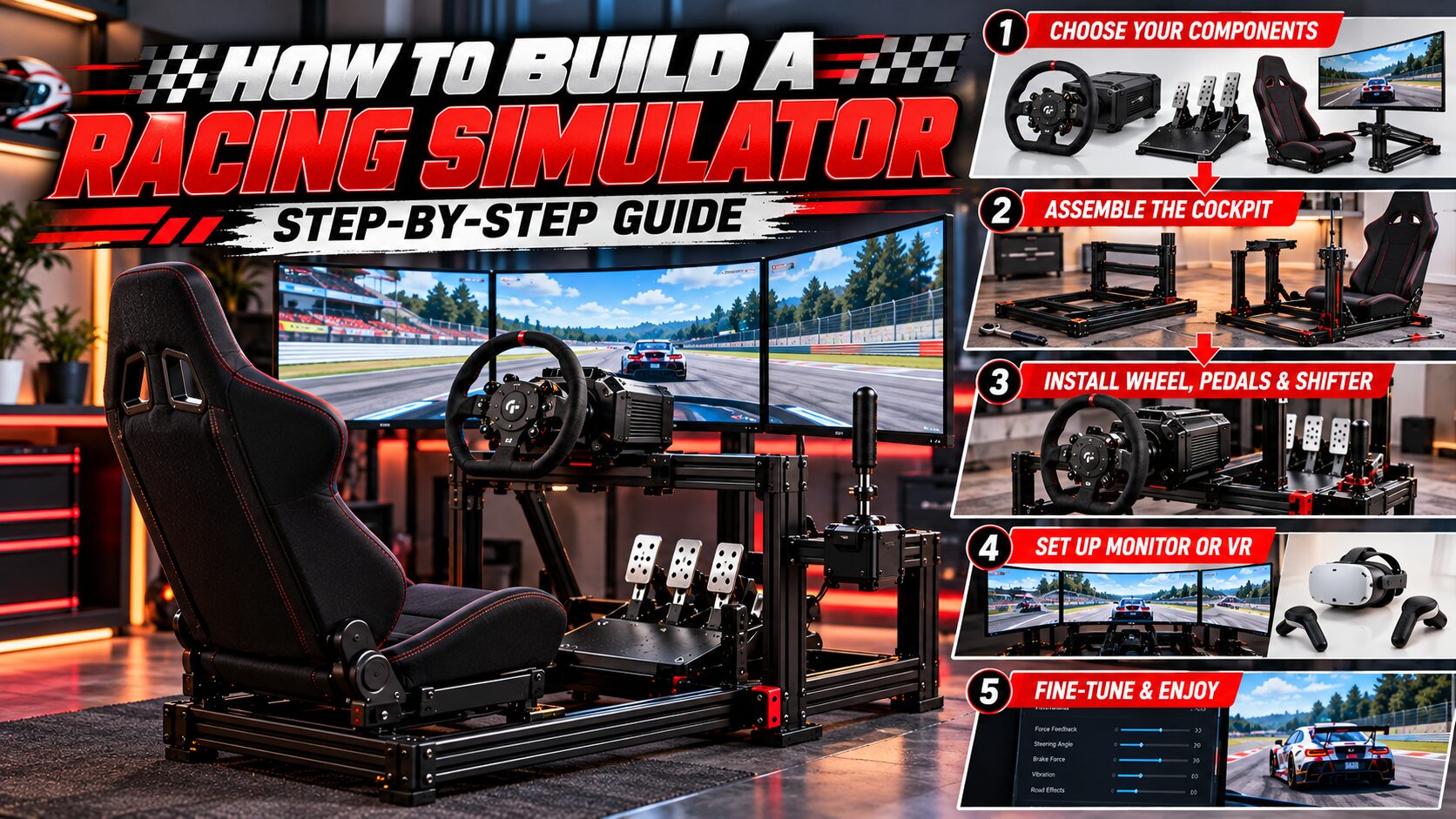
Step 6: Assemble Your Racing Simulator in the Right Order
- Clear and measure the area. Leave room for your knees, pedals, cables, and entry/exit.
- Build the stand or cockpit frame. Follow the manufacturer’s assembly manual. Start with bolts lightly tightened so adjustments remain possible.
- Install the seat. Set a rough seat position and ensure the rails and mounts lock securely.
- Mount the pedal set. Align it with your legs and verify that the brake plate does not flex or shift.
- Mount the wheelbase. Use compatible bolts of the correct length; bolts that are too long can damage equipment.
- Attach the steering wheel. Follow the quick-release or fastening procedure and check that it locks fully.
- Position the display. Keep the center of the screen aligned with the steering position.
- Route cables. Keep power and USB cables away from moving pedals, seat sliders, and sharp frame edges.
- Check every fastener. Confirm that the wheelbase, pedal plate, seat, and monitor are secure before powering up.
- Power on and test slowly. Follow device instructions and begin with low force-feedback strength.
Do not force connectors, improvise mains wiring, or modify power supplies. Use the supplied power adapter and approved mounting hardware. Keep children and pets away from moving or high-torque wheel equipment during calibration.
Step 7: Install Software and Configure Your Wheel
Install the correct software
Download drivers, firmware utilities, and configuration applications from the official manufacturer website. For example, MOZA uses Pit House for compatible devices. Logitech hardware uses the applicable Logitech configuration software. Restart the PC if the installer requests it.
Update firmware carefully
Only update firmware through official tools. Keep the device connected and powered throughout the process. If everything already works, read the update notes rather than assuming every new firmware release is essential.
Calibrate steering and pedals
Verify the steering axis reaches full left and right travel, the throttle returns to zero, and the brake registers smoothly. Set steering rotation to match the car or simulator where supported. Add a small dead zone only when there is actual unwanted input.
Start with conservative force feedback
Begin with a low or moderate strength setting. Look for clipping, which happens when forces exceed the configured output range and distinct effects flatten together. Increase strength gradually until you can feel the car without fighting the wheel. Avoid relying on someone else’s settings as a universal preset.
Test one car and one track
Use a familiar car and a repeatable track for the first session. Drive a few slow laps, then adjust one setting at a time. Changing wheel damping, overall strength, steering rotation, brake curve, and FOV simultaneously makes troubleshooting harder.
Step 8: Dial In Your Driving Position
A simulator should let you drive for a session without bracing your shoulders or stretching for the pedals. Your exact position depends on body proportions and whether you prefer a GT, formula, or upright seating style.
- Seat distance: With the brake pressed firmly, keep a slight bend in the knee rather than locking the leg straight.
- Wheel reach: With shoulders against the seat, keep a comfortable bend in the elbows when holding the wheel.
- Wheel height: Avoid shrugging your shoulders or reaching upward for the rim.
- Pedal alignment: Aim to press the brake without twisting the knee or ankle.
- Screen position: Keep the main view centered with your natural line of sight.
- Seat support: Use appropriate lumbar support and adjust any uncomfortable pressure points.
After twenty to thirty minutes, stop and reassess. If your wrists, neck, lower back, or knees feel strained, change the seating geometry before increasing session length.
Three Practical Racing Simulator Builds
Build 1: Budget Beginner Racing Simulator
Best for: First-time sim racers, occasional players, and anyone using a shared desk.
- Existing PC or compatible console
- Logitech G29/G920/G923-type force-feedback wheel-and-pedal bundle
- Stable desk or entry-level wheel stand
- Existing monitor or TV
- Non-rolling chair or securely restrained office chair
Why this build works: It covers the fundamentals without forcing you to buy a cockpit immediately. Your first priority should be eliminating wheel wobble and pedal movement.
Limitations: Less force-feedback detail than direct drive, possible desk vibration, and less consistent braking if the chair moves.
Build 2: Best Balanced PC Racing Simulator
Best for: Drivers who want a meaningful upgrade while keeping the build manageable.
- Windows gaming PC capable of running your chosen sim
- MOZA R5 bundle or similarly positioned direct-drive kit
- Sturdy wheel stand or compatible foldable cockpit
- Single monitor or ultrawide
- Headphones or existing speakers
Why this build works: A compact direct-drive bundle provides detailed steering feedback without requiring a permanent full-size rig. The bundled table clamp gives you flexibility while planning a later cockpit upgrade.
Limitations: The standard R5 bundle is PC-focused, and its included pedals are not a load-cell set. Confirm the foldable cockpit’s support for your hardware before purchasing.
Compare MOZA R5 listings on Amazon
Build 3: Enthusiast Racing Simulator
Best for: Frequent racers with dedicated floor space and a long-term upgrade plan.
- Capable gaming PC and appropriate graphics hardware
- Midrange or higher-torque direct-drive wheelbase with compatible steering rim
- Rigid aluminum-profile cockpit and adjustable seat
- Load-cell brake pedals
- Dedicated ultrawide, triple-monitor setup, or compatible VR headset
- Optional shifter, handbrake, and button box
Why this build works: Rig stiffness, consistent braking, and stable display positioning make it easier to develop repeatable technique. The cockpit also provides a platform for later hardware changes.
Limitations: Higher cost, greater space needs, more cable management, and extra time for tuning. Stronger wheelbases require careful force limits and safe operation.
Which Racing Simulator Setup Should You Build?
| Your situation | Recommended approach | First priority |
|---|---|---|
| New to sim racing | Entry-level wheel bundle and existing display | Learn the fundamentals |
| Small apartment | Desk mount or foldable cockpit | Storage and stability |
| PC racer upgrading from a controller | Entry-level direct-drive bundle | Wheel feel and secure mounting |
| Competitive road racer | Rigid cockpit and load-cell pedals | Repeatable braking |
| Console racer | Officially compatible wheel system | Platform support |
| Dedicated enthusiast | Modular direct drive and aluminum rig | Upgrade path and ergonomics |
What Should You Upgrade First?
- Fix instability. A solid mount makes existing equipment feel more consistent.
- Improve the braking platform. Prevent pedal and chair movement before buying stronger brakes.
- Upgrade pedals. Consider a load-cell brake if you race regularly and have a stable cockpit.
- Improve the display position. Correct FOV and closer screen placement can be more useful than extra accessories.
- Upgrade the wheelbase. Move to direct drive when your current feedback or ecosystem becomes limiting.
- Add specialty controls. Buy a shifter or handbrake if your preferred racing disciplines actually use them.
Ten Common Racing Simulator Build Mistakes
- Buying a wheelbase without a rim or pedals: Check exactly what comes in the box.
- Assuming PC equipment works on console: Confirm the complete hardware combination.
- Using a rolling chair with firm brakes: Prevent seat movement first.
- Ignoring cockpit flex: A powerful wheel needs a suitable mount.
- Overlooking shipping and taxes: Compare delivered costs, not headline prices.
- Buying triple monitors before checking PC performance: Plan graphics requirements.
- Mounting the screen too far away: Distance affects usable FOV.
- Turning force feedback to maximum immediately: Start low and tune safely.
- Changing too many settings at once: Adjust one variable and retest.
- Ignoring comfort: Bad seating geometry can spoil long sessions.
Final Pre-Race Checklist
- Wheelbase and wheel rim locked securely
- Pedals and seat do not slide
- All mounting bolts tightened to manufacturer guidance
- Cables clear of moving components
- Drivers installed and devices recognized
- Steering, throttle, and brake calibrated
- Force feedback set conservatively
- Monitor position and FOV checked
- Correct console or PC compatibility confirmed
- Short test session completed without discomfort
Frequently Asked Questions About Building a Racing Simulator
1. Can I build a racing simulator on a budget?
Yes. Start with a compatible force-feedback wheel-and-pedal bundle, a stable desk, and the display you already own. Upgrade only after identifying a specific limitation.
2. Do I need a gaming PC?
No. A compatible console and supported wheel can work well. A PC offers more flexibility for mixed-brand hardware and specialist simulation software.
3. Is direct drive necessary for beginners?
No. A gear-driven force-feedback wheel can teach steering control, braking, and racecraft. Direct drive is a useful upgrade, not an entry requirement.
4. Can I use my TV?
Yes. A TV can be a good starting display, especially if it supports a low-latency gaming mode. Position it at a practical viewing distance.
5. Do I need three monitors?
No. One properly positioned screen is enough to start. Triple monitors add visibility but also cost, space requirements, and GPU workload.
6. Is VR better than triple monitors?
Neither is universally better. VR emphasizes depth and immersion, while triple monitors can be more comfortable for some long sessions and make physical controls easier to see.
7. Do I need a cockpit?
Not immediately. A secure desk or wheel stand can work. A cockpit becomes more valuable with stronger force feedback, load-cell braking, and frequent use.
8. What is the best first upgrade?
Fixing movement in the pedals, chair, or wheel mount often delivers more immediate consistency than buying another accessory.
9. Are load-cell pedals worth it?
They can be, particularly for repeated braking under pressure. They work best with a rigid mounting system and a seat that stays put.
10. How much space does a simulator need?
It depends on the setup. A desk-mounted wheel may use existing furniture, while a fixed cockpit needs dedicated floor area plus room to enter and exit.
11. Can I mix brands?
Often on PC, where independent USB devices may work together. Console setups are generally more restrictive. Verify each device and game.
12. What games should beginners start with?
Choose a title supported by your hardware and suited to your interests. Road-racing simulators and accessible driving games both provide opportunities to practice steering and braking.
13. How do I stop pedals from sliding?
Hard-mount them to a compatible plate or stand. Temporary anti-slip solutions can help with light pedals, but they may not withstand high braking force.
14. Why does my wheel feel too heavy?
Overall force-feedback strength, in-game gain, damping, or other settings may be too high. Reduce them gradually and consult the manufacturer’s setup guidance.
15. What is force-feedback clipping?
Clipping occurs when the requested force exceeds the system’s configured output range, causing different strong effects to feel similarly saturated.
16. Should I buy a shifter?
Only if you enjoy manual-transmission driving, drifting, rallying, or classic cars. Many modern race cars use paddles, so a separate shifter is optional.
17. Can a foldable cockpit support direct drive?
Some can support selected entry-level direct-drive systems. Always check the cockpit manufacturer’s supported hardware, mounting pattern, and load limits.
18. What matters more: pedals or wheel torque?
For many drivers pursuing lap consistency, stable and repeatable braking deserves attention before chasing higher wheel torque.
19. How long does setup take?
A simple desk-mounted bundle may take less time than a full cockpit. Allow additional time for assembly, firmware, software configuration, and ergonomic adjustments.
20. Can I build a simulator in a bedroom?
Yes. Measure the available space and consider noise, storage, ventilation, cables, and whether other people use the room.
21. Do I need an emergency stop button?
Follow the wheelbase manufacturer’s safety recommendations. High-torque systems may benefit from or require additional safety controls; never bypass recommended protections.
22. Can I use a normal office chair?
Yes for a basic setup, provided the chair cannot roll or swivel unpredictably while braking. A stable seating position is essential.
23. What if my wheel is not detected?
Check power, USB connection, device mode, official drivers, and the game’s input settings. Test the hardware in its manufacturer’s software before troubleshooting the game.
24. What is the biggest mistake beginners make?
Buying parts individually without checking compatibility and total system cost. Plan the entire setup, including mounts and pedals, before placing orders.
Final Verdict: Build for Stability, Comfort, and Upgradability
If I were building my first racing simulator today, I would resist the temptation to spend most of the budget on the strongest wheelbase. I would choose a compatible wheel-and-pedal package, make sure the mounting is solid, use an existing monitor, and spend time setting the driving position correctly. Once I could drive consistently, I would upgrade the part that actually limited the experience.
For a budget build, that may mean a Logitech-style force-feedback bundle on a secure desk. For a balanced PC setup, an entry-level direct-drive bundle such as the MOZA R5 can be a logical starting point. For an enthusiast rig, I would build around a rigid cockpit and dependable pedals before adding triple screens, a shifter, or other accessories.
The best racing simulator is not the one with the longest equipment list. It is the one that fits your space, works reliably, and lets you focus on driving.
Editorial transparency: This guide combines manufacturer specifications and general sim-racing setup principles. It does not claim hands-on testing of every listed product. Prices are illustrative planning estimates and can change.

Hi, I’m Peter Edwards, a lifelong sim racing enthusiast, tech tinkerer, and automotive geek with a passion for making virtual racing feel as real as possible. I’ve spent years testing steering wheels, pedals, and full cockpit rigs—from entry-level gear to pro-grade setups—to help others build immersive, affordable racing experiences at home.
When I’m not tightening bolts on my rig or tuning force feedback curves, you’ll find me comparing telemetry data, exploring new racing titles, or helping fellow racers fine-tune their setups. My goal is to share honest, experience-based insights that help every driver—from casual weekend racers to aspiring eSports pros—get faster, smoother, and more connected to the track.
I write for SimRacingEnthusiast.com, where I share deep-dive reviews, setup guides, and honest opinions on the latest in the sim racing world.